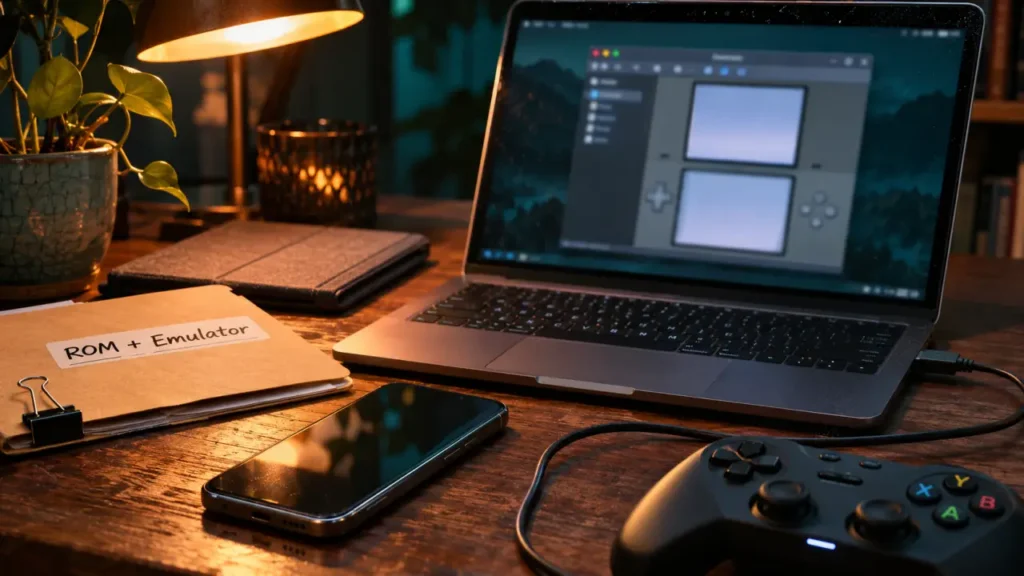
To emulate Pokémon games, match the game’s original console to an emulator that runs on your device. For example, Pokémon Emerald needs Game Boy Advance emulation, while Pokémon Platinum needs Nintendo DS emulation. Install the emulator separately from the game file, configure your controls, and test saving before starting a long adventure.
The most important choices are compatibility, trustworthy downloads, and reliable save handling—not the longest feature list. Here is a practical route from choosing software to keeping your progress safe.
Start with the original console, not the Pokémon generation
An emulator reproduces aspects of a console so its games can run on another device. The emulator is the application; a ROM image is the game data it loads. Installing one does not automatically provide the other.
Test Your Pokémon Emulation Setup Knowledge
Choose one answer for each question. Submit to see your score and immediate feedback.
Console names matter more than release order. FireRed and LeafGreen revisit the original Pokémon adventure, but they are Game Boy Advance games, not Game Boy games. Likewise, HeartGold and SoulSilver require Nintendo DS emulation despite being remakes of Game Boy Color titles.
| Original system | Pokémon examples | Emulator starting point |
|---|---|---|
| Game Boy and Game Boy Color | Red, Blue, Yellow, Gold, Silver, Crystal | mGBA on desktop; Delta on iOS |
| Game Boy Advance | Ruby, Sapphire, Emerald, FireRed, LeafGreen | mGBA or VBA-M on desktop; My Boy! on Android; Delta on iOS |
| Nintendo DS | Diamond, Pearl, Platinum, HeartGold, SoulSilver, Black, White, Black 2, White 2 | DeSmuME on desktop; Delta on iOS |
| GameCube | Colosseum, XD: Gale of Darkness | Dolphin |
| Wii | Battle Revolution | Dolphin |
These are selection starting points, not guarantees for every release or feature. Check the project’s compatibility information for your exact title. DeSmuME is a Nintendo DS emulator, not a Switch emulator. Nintendo 3DS and Switch games also require separate, system-specific research; neither is covered by choosing a DS emulator.
Choose software that fits your computer or phone
Windows and macOS: prioritize a straightforward setup
For Game Boy Advance games, mGBA and VBA-M are sensible desktop options to investigate. For Nintendo DS titles, DeSmuME is a relevant starting point. Dolphin serves GameCube and Wii games rather than the handheld titles in the table. Check each project’s supported operating-system versions and installation instructions before downloading.
DeSmuME Official Emulator Documentation and FAQ · Explore the DeSmuME manual, self-service wiki, FAQ, cheats, downloads, and verified project resources.
Choose based on the game you want to play, controller configuration, and save import or export options. A multi-system interface may be convenient, but it introduces another layer of menus and emulator-core settings. A standalone application can make a first setup easier to understand.
Android and iOS: consider touch controls and file access
My Boy! is an Android option for Game Boy Advance games; it is not a Nintendo DS emulator. Delta is an iOS option covering several older Nintendo systems, including Game Boy, Game Boy Advance, and Nintendo DS. Verify current store availability, regional restrictions, device requirements, and any system-file requirements before committing to a setup.
On a phone, practical comfort matters. DS games need two screens and touch input, which can feel cramped in some layouts. Check whether your chosen app offers a usable screen arrangement and controller support. Do not assume a mobile release has the same capabilities as a similarly named desktop application.
Free desktop projects can already provide the essentials. If a mobile app charges a fee, assess its documented features and maintenance rather than assuming payment means better compatibility. Store pricing and feature policies can change.
Keep emulator downloads separate from game-file legality
An emulator’s availability does not make Pokémon ROM downloads lawful. Copyright rules, personal-copy exceptions, and restrictions on bypassing protection vary by jurisdiction. Owning a cartridge does not automatically authorize downloading someone else’s copy from a website.
Where local law permits making a personal backup, follow lawful procedures for your own hardware and game. Firmware or BIOS files can carry separate legal restrictions, too. Check the emulator’s documentation to establish whether those files are required; do not download an unexplained “complete Pokémon pack” as a shortcut.
- Obtain emulator software from its official project distribution or a verified app-store listing.
- Avoid download managers, password-protected bundles, and installers advertised as game ROMs.
- Do not disable security software because a download page instructs you to.
- For Android, prefer the developer’s documented distribution route over random APK mirrors.
A game file should not require you to install a browser extension or grant administrator access. Treat those requests as warning signs. ROM hacks also need care: a modification patch and a complete copyrighted game image are not interchangeable, legally or technically.
Set up controls, launch the game, and test your saves
- Install a stable release. Follow the instructions for your operating system. Start with default settings rather than importing an unfamiliar configuration.
- Prepare your lawful game file. Keep it in a clearly named folder. Confirm that its format is supported; extract an archive only if the emulator requires it.
- Open the game. Use the application’s open, load, or import command. If it fails, recheck the original console and file format before changing graphics settings.
- Map the controls. Assign the directional pad, action buttons, Start, Select, and shoulder buttons as appropriate. For DS games, test touch input and screen placement.
- Verify sound, speed, and saving. Begin at normal speed and default resolution. Create an in-game save, close the emulator normally, and reopen the game to confirm it persists.
An in-game save uses the game’s own saving mechanism. A save state captures the emulator’s running state so you can resume at a particular moment. States are convenient, but may not transfer reliably between emulators or versions. Use ordinary saves as your foundation and keep separate backups.
Think of a device transfer as a seam between two pieces of fabric: the connection needs matching edges. Here, those edges are the game edition, save format, and filename association. Before moving from computer to phone, create an in-game save, export it through the emulator’s supported method, and retain the untouched original. Test the imported copy before continuing; copying a save-state file alone may not join the two setups successfully.
Fix problems before adding speed-ups, cheats, or extras
If play stutters or audio crackles, return to default settings, disable fast-forward, close demanding background applications, and reduce enhanced resolution where available. Increasing resolution does not improve compatibility. On a phone, sustained heat or power-saving settings can also affect performance.
- Black screen or failed launch: check the console match, supported format, game-file integrity, and documented firmware requirements.
- Unresponsive controls: check input mappings, controller detection, and whether the emulator window has focus.
- Missing progress: inspect the save directory, write permissions, and whether you loaded an older state over newer progress.
- Incorrect clock events: check real-time-clock settings and title-specific documentation.
- Trading problems: verify explicit support for the connection method. Running two games does not automatically recreate a link cable or online service.
Save states, screenshots, and cheats vary by emulator. Back up your normal save before experimenting with cheats, and use codes intended for the exact game and region. For advanced users, mGBA has described Lua scripting in development builds, including memory access, screenshots, and save-state operations; these are optional technical tools, not prerequisites for playing.
Once the game runs correctly and survives a save-and-reopen test, adjust one setting at a time. That makes it easier to identify which change caused a problem—and keeps your next session focused on Pokémon rather than configuration.